
How do I whitelist JFC emails?
Email services often update your inbox filters and spam settings to try to ensure you only receive what they think you want, rather than emails you actually do. They do a good job of spamming the scammers, keeping your inbox clean and protecting you from unwanted messages, but they can sometimes be overzealous and start hiding messages that you do want - such as our Jack's Flight Club Flight emails.
To ensure you continue to see our emails, you can create a 'whitelist' of email addresses that you can specify are not spam. To help you out, here's the most common 'from' addresses that we use for our emails:
- jack@content.jacksflightclub.com - for our Flights.
- detour@travel.jacksflightclub.com - for our Newsletters.
- hello@members.jacksflightclub.com - for important messages about your account.
- hello@travel.jacksflightclub.com - for new features, updates and sale offers.
To create a whitelist, follow the instructions below for your email provider, using the address you used to sign up for Jack's Flight Club alerts. We'd suggest doing this in a web browser if possible, rather than on a mobile device, for ease of use.
Gmail
Gmail makes it extra simple to whitelist us by adding us to your contacts. Click on the grid section just next to your profile picture in the upper-right-hand corner, then select the 'Contacts' section:

This will take you to a selection of your contacts, where you can now add Jack's Flight Club:
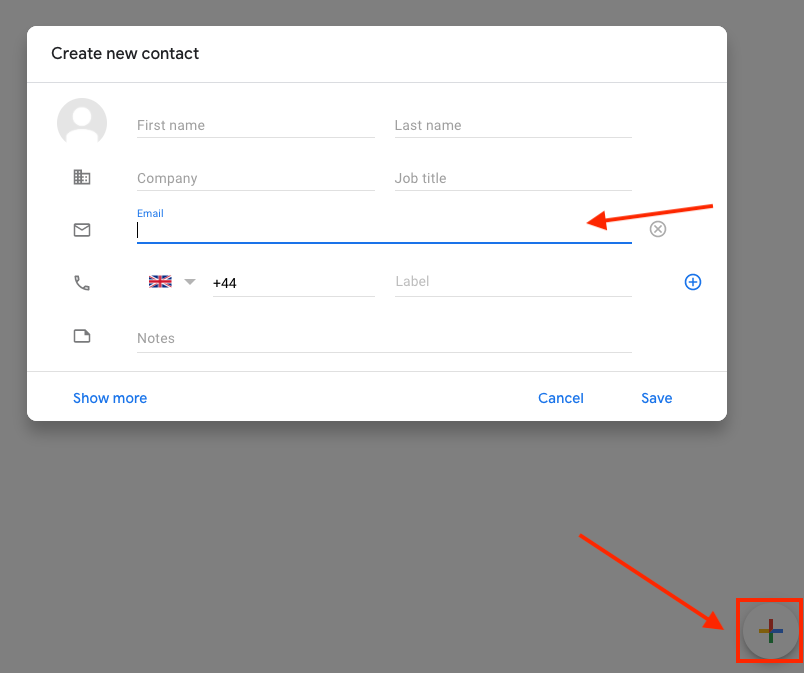
The '+' sign in the lower-right corner lets you add more contacts. Simply enter all our emails and click 'Save' to be whitelisted to receive emails from us.
Hotmail, Outlook, Live
For Hotmail, Live, and Outlook accounts, adding us to your whitelist is similar. To add Jack's Flight Club to your contacts and make sure you're able to keep receiving Flights, just log into your inbox and click on the person icon in the lower-left-hand side of your screen:

This will take you to where your contacts are stored. In order to add a new contact, the upper-left side will have a 'New Contact' option. Once you click this, a new contact card will open:

To whitelist, be sure to add our email addresses to your contacts so you'll continue to receive our content straight to your inbox. From there, click 'Create', and you're all good to go!
Yahoo
To ensure we're whitelisted in your settings, you can easily add a contact once you've logged in to your Yahoo inbox. Once on your homepage, just click the small person icon listed in the top-right-hand corner:

This will pull up the contact list for your inbox. At the bottom, you'll be able to see the 'Add a new contact' option at the bottom right-hand of your screen:

In the new contact field, just enter the emails of the senders you'd like to whitelist.

Click 'Save', and now you'll begin to receive all of our emails sent straight to your inbox.
Other Email Domains
There are many domains that offer different options for adding to whitelists. While we've listed the five most common domains above, we know there are more that will still need whitelisting help. Simply add the listed email address to your contacts, and you'll be set.
Check out this resource (not affiliated, just extra useful) to look up your domain and find the best tips to make sure we're whitelisted, along with further instructions.